BF6 DirectX Error in 2026: 8 Fixes for DXGI Device Removed
The Battlefield 6 DirectX error (DXGI_ERROR_DEVICE_REMOVED or DEVICE_HUNG) is almost always a GPU driver crash, not broken hardware. Here are 8 fixes ranked by how often they actually work, plus what EA has confirmed.
The Battlefield 6 DirectX error — usually reported as DXGIERRORDEVICEREMOVED or DXGIERRORDEVICEHUNG — is almost always your graphics driver crashing mid-frame, not a dead GPU, and EA's own support page says as much, recommending a driver update as the first step. EA's help documentation notes the error is typically caused by the graphics driver crashing and points players toward installing the latest drivers. The frustrating part isn't the fix — it's the cost. Every crash 20 minutes into a Conquest match is 20 minutes of weapon XP you don't bank, which is why players mid-way through a Mastery 50 grind tend to get more annoyed by this than anyone else. If your crash streak has already eaten a week of progress, a BF6 weapon leveling boostfrom $19.99 will close that gap while you sort the PC side out.
I've spent enough time reading crash logs and patch notes to say this plainly: there is no single cause. Community diagnosis threads list daisy-chained PCIe cables, conflicting background software like antivirus suites and overlays, and even the GPU control panel misidentifying which game is running — with the conclusion that many players see the identical error message from completely different root causes. So work the list in order. Cheapest, least invasive fix first.
Quick-fix checklist (ranked by hit rate)
- Update — or roll back — your GPU driver. The single highest-probability fix.
- Turn on the in-game frame rate limiter and cap it near your monitor's refresh rate.
- Disable frame generation and third-party overlays.
- Verify / repair game files in Steam or the EA app.
- Remove any CPU or RAM overclock, including XMP/EXPO profiles.
- Force DX12 in
PROFSAVE_profile(community workaround). - Override Windows TDR timeouts via registry (advanced, community-only).
- Clean reinstall, then report the bug to EA.
1. Drivers: update first, then consider rolling back
Start with a clean driver install from NVIDIA, AMD or Intel directly rather than a game-launcher prompt. If the crashes began after a driver update, reverse the logic — at least one player reported never seeing the issue until a specific March 2026 NVIDIA driver, and rolling back one or two versions is a legitimate test. Intel Arc owners should note this was a platform-specific problem from the start: first-gen Alchemist cards from the A380 to the A770 saw matchmaking freezes, map load failures and mid-match drops, while the newer B-series was not affected.
Pro tip: Write down the exact error string, your GPU model and the driver number shown in the crash dialog before you change anything. Platform, storefront, game version, GPU, driver version, and the map and mode you were playing are what determine whether a given workaround is even relevant to your case. Chasing random fixes without that information is how people lose an evening.
2. The frame rate limiter — the best time-to-value fix
This is the one I'd try before anything technical. A player who saw the "video card physically removed" variant tried fresh driver installs, Secure Boot changes and nearly every graphics setting before capping frame rate: at 60 FPS the game stopped crashing entirely, raising it back to unlimited crashed in the first match, and 120 FPS proved stable — the toggle lives under Graphics > Advanced > Modify > Frame Rate Limiter. Another player running 144 FPS locked on a 120Hz monitor started getting DirectX errors after a seasonal update and became crash-free after matching the cap to the monitor.
Pros:
- Takes 30 seconds, no registry, no reinstall, zero risk
- Reduces GPU power spikes, which is the actual mechanism behind most hangs
- Reversible instantly if it doesn't help
Cons:
- You give up some frames — a real cost on a high-refresh monitor
- It treats the symptom, not an unstable driver or bad cable
- Doesn't help crashes that happen before the main menu
Also worth killing in the same pass: frame generation. Disabling DLSS frame generation or similar experimental frame-gen tech is a standard test, because it can interact badly with drivers and produce DXGI errors.
3. File integrity and the boring stuff that works
Use Steam's verify function or the EA app's Repair before you consider a reinstall. The sane escalation order is: restart, repair files, clear the EA app cache, temporarily disable conflicting tools — and only then reinstall, roll back a driver or touch firmware. If your problem is actually the game refusing to launch at all rather than crashing mid-match, that's a different diagnostic branch: Secure Boot and Javelin errors point to PC security or anti-cheat configuration, while DXGI errors point to rendering, drivers or stability — our BF6 Secure Boot error fixes covers that side.
4. Config-file and registry workarounds (community, not official)
Two fixes circulate widely. Treat both as unofficial.
- Force DX12 in the profile file. One IT-side troubleshooter fixed a friend's 1–10 minute crash loop by enabling DX12 in
PROFSAVE_profile(Documents\Battlefield 6\settings) and adjusting the GPU setting at the same time, on an AMD card. Either change alone may be enough. - Override Windows TDR. The theory is that Windows Timeout Detection and Recovery shuts the stalling GPU driver down instead of resetting it, and raising the TDR values in
HKEYLOCALMACHINE\SYSTEM\CurrentControlSet\Control\GraphicsDriversmakes Windows reset it instead. It does stop the error message for some people — but experienced users push back hard, arguing TDR exists to protect your system and that a DEVICE_HUNG really means the driver didn't respond in time, i.e. the GPU or driver is unstable and should be investigated.
Pro tip: Back up the registry key before editing it, and make one change at a time. If you stack four fixes simultaneously and the crashes stop, you've learned nothing — and you'll be back here after the next driver release.
If nothing works
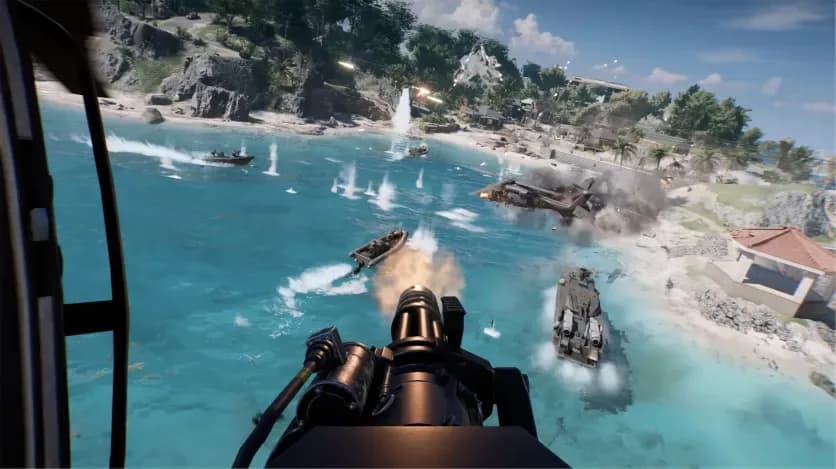
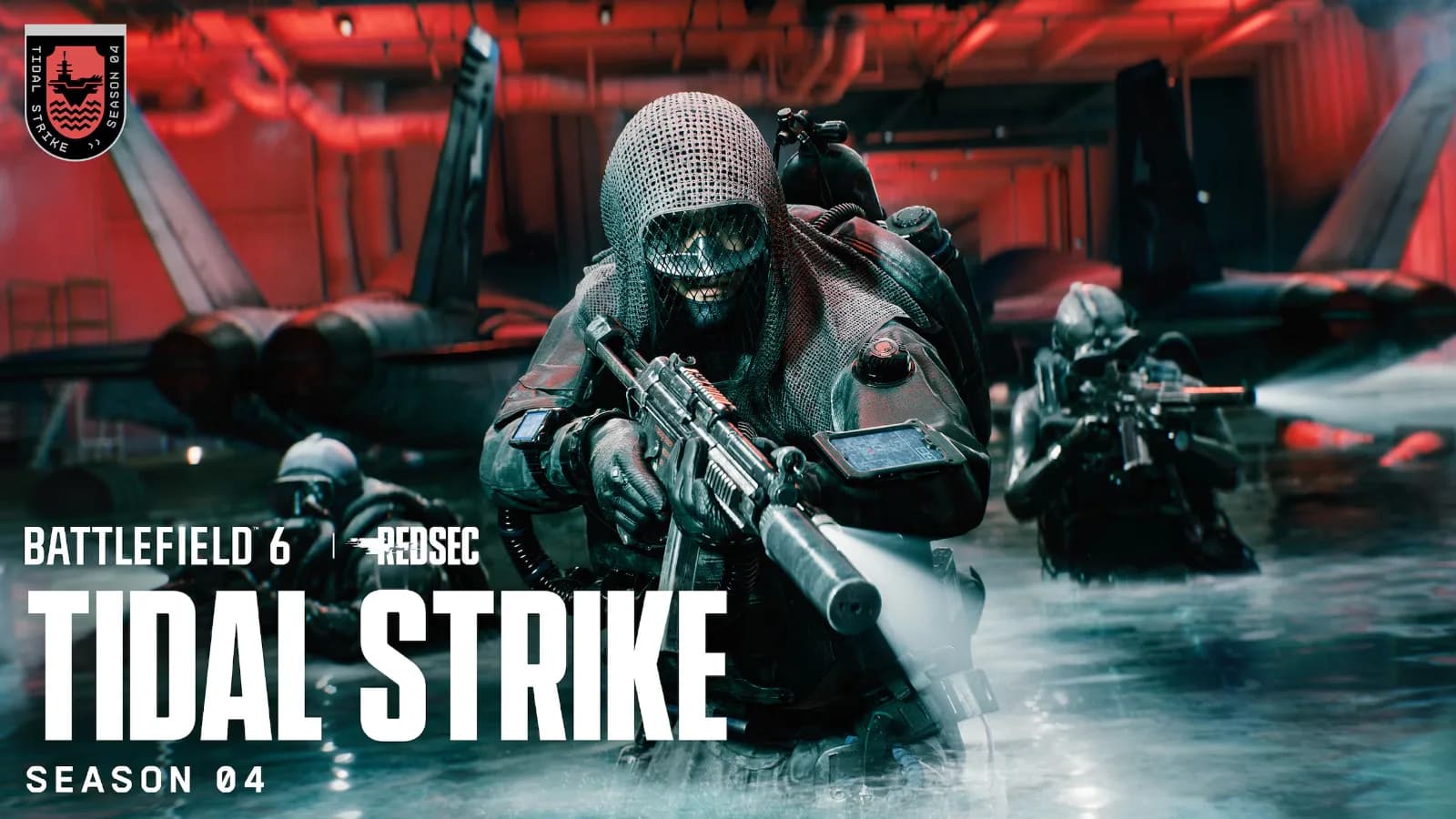
Check the patch status before assuming it's your rig. Update 1.4.1.5 shipped on 4 August 2026 and fixed a crash affecting certain NVIDIA GPUs during attachment changes, Custom Search, and maps with large bodies of water, and later NVIDIA crash reports clustering on water-heavy maps is useful context but doesn't prove every post-Season 4 crash shares that cause. That matters right now: Game Update 1.4.3.0 deployed on 15 September 2026 alongside Season 4: Tidal Strike, with seasonal content including the Deep Six Collection Event, the Phantom Program and Proximity Chat going live at 12:00 UTC — more water, more naval assets, more of the exact scenario that has historically triggered these crashes.
So: read the newest official patch notes, check the EA Help server status page, and post your crash log with full specs in the Battlefield 6 technical-issues forum. Be aware that that forum contains unconfirmed, duplicated and player-specific reports, and the public known-issues bulletins are not a complete database of every live bug. If a DICE-side fix is pending, patience genuinely is the correct move.
Bottom line
Ranked purely on time-versus-value: driver update and frame cap are near-free and solve the majority of cases; overlay/overclock removal and file repair are the next 20 minutes well spent; config and registry edits are last-resort tinkering with real downside. The hidden cost is the progression you lose while testing. Crashes also tend to break XP tracking, which is a separate headache — our guide on BF6 weapon XP not tracking explains how to tell the two apart.
A crash-interrupted Mastery 50 grind can easily stretch a 6–8 hour weapon into twice that, since unfinished matches often don't pay out. If you'd rather spend your stable hours actually playing Tidal Strike instead of re-farming what a DXGI error ate, our BF6 weapon leveling servicefrom $19.99 handles the repetition for you.
Related Battlefield 6 services
Vetted boosters handle the grind covered in this guide, with live support and scheduled delivery.
Battlefield 6 Bot Lobbies
BF6 Bot Lobbies with 5 or 8 AI bots, averaging ~1,000–1,600 kills per hour. Grind weapon mastery, camos and XP with self-play access and no account login required.
Battlefield 6 Weapon Leveling Boost
Max out your Battlefield 6 weapons to Mastery Level 50. Unlock weapon attachments, camos, Weapon Packages and mastery rewards with professional manual boosting.