Warzone Failed Attestation Status: 6 Fixes That Work (2026)
The Warzone Failed Attestation Status error locks you out of most playlists after Season 4 — here's what it means and 6 fixes to pass the TPM 2.0 / Secure Boot check.
The short answer
If Warzone hit you with "Failed Attestation Status" after the Season 4 update, your PC didn't pass RICOCHET's new hardware security check — the fix is almost always to turn on TPM 2.0 and Secure Boot in your BIOS. It's not a ban. Your account is fine. You're just benched.
Here's the part that stings: players who do not complete attestation are limited to Nuketown 24/7 in Call of Duty: Black Ops 7 and Battle Royale Casual in Call of Duty: Warzone. One playlist. That's it. No Ranked, no full BR rotation, no matching with your console friends.
Let's get you back in.
What actually changed in Season 4
Verdict: this is enforcement, not a new rule.
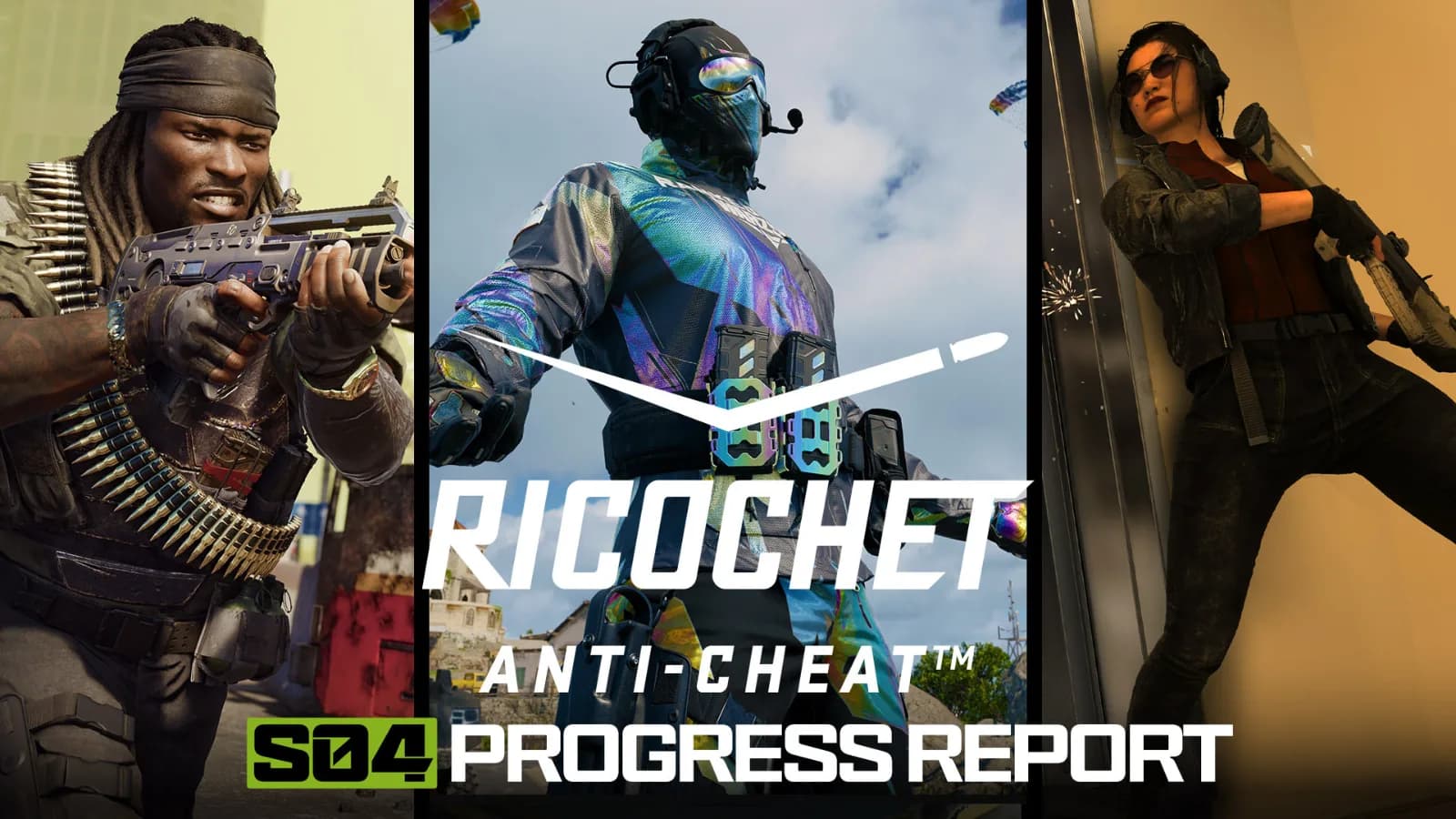
TPM 2.0 and Secure Boot have been on Call of Duty's requirement list for a while. What's different now is that RICOCHET stopped politely warning you and started actively sorting non-compliant PCs into a corner. RICOCHET Anti-Cheat uses Remote Attestation to help verify important PC security settings directly with Microsoft as part of its implementation of TPM 2.0 — validating those checks through trusted Microsoft servers instead of relying on local checks that can be manipulated to falsely report everything is "all clear."
In plain English: the game now phones Microsoft to confirm your PC is in a trusted state. The Warzone "failed attestation" error means your PC hasn't passed Black Ops 7's new Microsoft Azure Attestation (MAA) security check — and the fix is almost always to enable two BIOS settings: TPM 2.0 and Secure Boot.
One extra gotcha worth knowing before you rage-quit: if you attempt to play with party members whose PCs aren't compliant, you'll also receive a failed-attestation message because at least one party member did not meet secure attestation requirements. So it might not even be your rig — it could be your duo partner's.
Quick-fix checklist (try these in order)
| # | Fix | Who it's for | Confirmed by |
|---|---|---|---|
| 1 | Enable TPM 2.0 in BIOS | Everyone failing the check | Activision (official) |
| 2 | Enable Secure Boot (UEFI + GPT) | Legacy-mode PCs | Activision (official) |
| 3 | Update BIOS / fTPM firmware | AMD boards, older firmware | Activision (official) |
| 4 | Clear TPM keys | Enabled but still failing | Community workaround |
| 5 | Update Windows + verify game files | Edge cases | Community workaround |
| 6 | Check your party members | Squad players | Activision (official) |
Work down the list. Most people are done after fix 1 or 2.
Fix 1 — Turn on TPM 2.0
This is the single most common cause. TPM is a small security feature nearly every PC from the last several years already has — it's just switched off in a lot of custom builds and Windows 10 installs.
- Reboot and enter your BIOS/UEFI (usually Del or F2 as the PC powers on).
- Find the TPM setting — it hides under Security, Advanced, or Trusted Computing.
- Intel: enable Intel PTT (Platform Trust Technology).
- AMD: enable AMD CPU fTPM.
- Save and exit (usually F10).
Confirm it took: press Win + R, type tpm.msc, and look for "The TPM is ready for use" with Specification Version 2.0.
Fix 2 — Enable Secure Boot (and check UEFI + GPT)
Verdict: this is where the "I turned TPM on and it still fails" crowd usually gets caught.
Many players discover TPM and Secure Boot are enabled, but Windows is still running in Legacy BIOS mode. Open msinfo32, find BIOS Mode, and confirm it says UEFI — if it shows Legacy, the attestation check may fail even when Secure Boot is enabled.
UEFI needs a GPT disk. Open Disk Management, right-click Disk 0, select Properties, open the Volumes tab, and verify Partition Style is GPT — MBR installations can prevent successful attestation.
Warning: toggling Secure Boot, clearing TPM, or flashing BIOS can trigger BitLocker recovery on the next boot. Grab your recovery key from your Microsoft account (Devices → See details) before you touch anything.
Fix 3 — Update your BIOS / fTPM firmware (mostly AMD)
If both settings are on and you still fail, your firmware is probably too old. Activision called this one out directly. For AMD users, versions of AMD's TPM software in the 3.x.0.x range can return an error during the attestation process, and the fix is to update the system BIOS or firmware.
If your fTPM Manufacturer Version reads 3.x.0.x (e.g. 3.92.0.5), you must flash a newer BIOS so the version becomes 3.x.5.x or higher (e.g. 3.92.5.5). Read your version in tpm.msc, grab the latest BIOS from your motherboard maker, flash it, then re-enable TPM and Secure Boot afterward — a flash can reset them.
Heads up on budget hardware: cheap X99/server boards (Machinist, Huananzhi) and most cloud PCs/VMs can fail this check permanently. If that's your setup, no amount of toggling will save it.
Fix 4 — Clear the TPM keys
Community workaround, not an official step — but it's worked for people whose settings all look correct. Navigate to TPM settings, select TPM Clear or Clear TPM Keys, save and reboot — some players have reported success after clearing TPM and letting Windows recreate the security keys. Make sure your BitLocker key is saved first.
Fix 5 — Update Windows and verify game files
Another community-side cleanup. Older Windows security components may cause attestation failures — make sure Windows is fully updated, security updates are installed, optional driver and TPM-related updates are applied. Several reports indicate Windows security updates can resolve attestation problems. While you're at it, run Scan and Repair in Battle.net or Verify Integrity of Game Files in Steam.
If nothing works
Be honest with yourself here: for some people, this isn't a user-side fix yet. On the Steam forums, a player who tried BIOS updates, TPM resets, Secure Boot toggles and a full reinstall reported that Activision support eventually replied their studio teams are actively investigating the issue and do not have an exact time frame.
So if you've genuinely done everything above and still see the error:
- Escalate to Activision. Contact Activision Support and provide details about your system, TPM, Secure Boot settings, and the fixes you've already tried.
- Keep everything current. Until a permanent fix arrives, keeping your BIOS, Windows installation, and motherboard firmware fully updated gives you the best chance of passing the attestation check.
- Nuclear option: a clean Windows 11 install with Secure Boot and TPM enabled before installing. Only do this as a last resort.
If you're curious whether all of this changes anything about the safety of using services while you're stuck in a restricted pool, our breakdown of Warzone boosting safety and RICOCHET walks through how the anti-cheat actually behaves in Season 4.
The real cost of being benched
Here's the thing nobody mentions in the fix guides: while you're locked to BR Casual, everything stalls. No Ranked SR. No camo challenge progress in Ranked or the modes you're locked out of. And a BIOS/firmware fix isn't always a 10-minute job — for AMD boards it can eat an afternoon, and a full reinstall can cost you days of a season that's already ticking.
If the attestation mess cost you a chunk of your camo grind, our team can claw it back fast — the BO7 Apocalypse Camo unlockfrom $0.40 is done by hand so you finish the road you were locked out of instead of grinding it twice.
Related Call of Duty: Warzone services
Vetted boosters handle the grind covered in this guide, with live support and scheduled delivery.
Warzone Ranked Boost – Resurgence Ranked Play
Climb the Warzone Resurgence Ranked ladder from Bronze to Iridescent with professional players. Our experienced boosters complete the Ranked progression directly on your account and help you reach your desired Rank and SR.
Warzone Nuke Boost – Champion’s Quest
Complete the Warzone Champion’s Quest and unlock exclusive Nuke rewards, including the Axia Grimm Operator Skin, weapon camos, calling cards, and more. Fast, safe, and professional completion.