Warzone DirectX Unrecoverable Error: 7 Fixes That Work (2026)
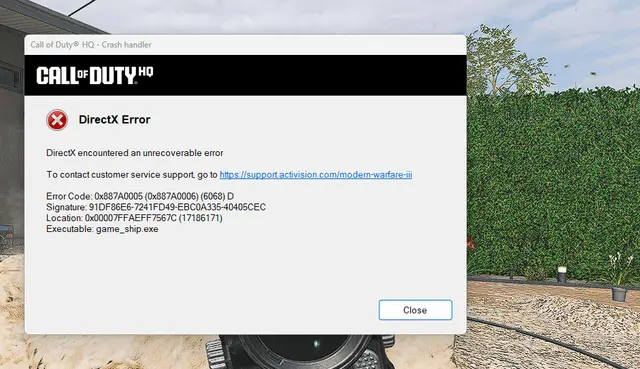
Warzone's "DirectX encountered an unrecoverable error" almost always comes from a GPU driver, RAM overclock, or shader-cache problem. Here's the fix checklist, ranked, plus what to do when nothing works.
The Short Answer
Warzone's "DirectX encountered an unrecoverable error" is almost always a GPU driver, RAM overclock, or shader-cache problem — not a server-side one. Update or roll back your graphics driver first; that clears it for most players. Everything else below is what to try when it doesn't.
Here's the annoying part. The error message itself is useless — "unrecoverable" tells you nothing, so troubleshooting is partly trial and error. DX12 is unforgiving: any tiny driver glitch, RAM overclock issue, or shader corruption causes an instant crash with no graceful recovery — just a hard boot to desktop.
This error is still hitting players in 2026, and it shows up under a bunch of aliases: DirectX unrecoverable error, Dev Error 6066/6068/6071, and codes like 0x887A0005. Same root causes, same fixes.
Quick-Fix Checklist (Do These In Order)
Work top to bottom. Stop when Warzone stays open.
- Update your GPU driver — the single most common fix.
- Roll back the driver if the crash started after a recent driver.
- Scan and Repair game files in your launcher.
- Force DirectX 11 with a launch argument.
- Kill overlays — Discord, Afterburner, Game Bar, ShadowPlay.
- Disable XMP / drop RAM speed in BIOS.
- Lower VRAM scale / textures if you crash after loading in.
Pro tip: Before you touch anything, fully shut down your PC — not restart, shut down — and wait 30 seconds. A cold boot clears memory leaks and shader weirdness. It's free and it fixes more crashes than people expect.
Fix 1 — Update (or Roll Back) Your Graphics Driver
Verdict: this fixes it 60% of the time. Start here.
The DirectX layer is just the middleman between Warzone and your GPU. When the driver is stale or buggy, that handshake fails. The most common cause is that either your driver is too old, or the latest one has a regression.
The catch: newer isn't always better. Many Warzone threads report driver regressions cause DirectX crashes. So the play is:
- Install the latest driver from NVIDIA, AMD, or Intel first.
- If crashes get worse — or started right after an update — roll back instead.
- For a clean swap, use DDU (Display Driver Uninstaller) in Safe Mode, then install a known-stable older version.
Nvidia users can check GeForce Experience for the latest branch, which includes Call of Duty–specific optimizations. AMD owners should update through Radeon Settings.
Fix 2 — Scan and Repair Your Game Files
Verdict: fast, zero-risk, catches corrupted shaders.
Warzone compiles and caches shaders, and a corrupt cache is a textbook DirectX trigger. Missing or damaged game files are a known culprit of Warzone crashing, and the built-in repair tool of the Battle.net client lets you check and repair easily.
On Battle.net: click Call of Duty: Warzone, select Options, click Scan and Repair, then Begin Scan and wait for it to finish. Steam players use Properties → Installed Files → Verify integrity of game files instead.
If that doesn't do it, manually delete the shader cache folder Warzone creates — the game rebuilds it clean on next launch.
Fix 3 — Force DirectX 11
Verdict: the classic Warzone stabilizer.
DX12 is where most of these crashes live. DX11 is older and more forgiving. For many players, switching from DX12 to DX11 stabilized Warzone — DX11 is often more stable for many setups.
In Battle.net: open the launcher, find Call of Duty: Warzone, press Options or the gear icon and choose Game Settings, check Additional Command Line Arguments, then type the DX11 launch argument and hit Done. Restart the game so it takes effect.
Pro tip: If you're already on DX11 and still crashing, flip it the other way and try DX12. It's rare, but some rigs are more stable there. Costs you one relaunch to check.
Fix 4 — Kill Background Overlays
Verdict: the silent troublemaker nobody suspects.
Overlays hook directly into the rendering pipeline, which is exactly where DirectX lives. Software like MSI Afterburner, RivaTuner Statistics Server, GeForce Experience Overlay, and Discord are known to cause the DirectX issue with Warzone.
Close them all before launching: Discord overlay, NVIDIA ShadowPlay, Xbox Game Bar, Afterburner/RTSS OSD, and any recording software. If the DirectX error goes away, you've found the culprit — you can re-enable overlays after exiting Warzone.
Fix 5 — Disable XMP / Lower Your RAM Speed
Verdict: the fix nobody thinks of, and it's a big one.
This one catches people off guard. If you're running XMP on RAM that wasn't built for it, Warzone exposes that instability instantly — DirectX errors are a classic symptom of bad memory timings.
How to test it:
- Restart and enter BIOS (usually Delete or F2).
- Find XMP or DOCP (AMD) — often under "AI Tweaker" or "Overclocking."
- If your RAM was at 4000+ MHz, manually drop it to 3200 or 3600 MHz, save, exit, boot to Windows, and test Warzone.
If it runs at lower speeds, your RAM is unstable at its rated XMP profile — common, especially with 4-stick configs. Same logic applies to any GPU/CPU overclock: revert to stock clocks, because CoD titles are sensitive to OC/UV instability.
Fix 6 — Lower VRAM Scale and Textures
**Verdict: for crashes that happen after you load into a match.**
Warzone is greedy with memory. Blow past your VRAM ceiling and the DirectX layer buckles. Lower texture quality, reduce render resolution or VRAM scale — some users report setting VRAM scale to 50% or lowering textures helps. Turning off Texture Streaming and V-Sync is also worth a shot on lower-end rigs.
If Nothing Works — Escalation
Run down the honest checklist before you nuke anything:
- Check for a server outage first. Visit the official Activision server status page to confirm there's no ongoing outage or maintenance. No point troubleshooting your PC if the servers are down.
- Confirm it's not a known issue. Activision keeps a running list of issues under investigation or scheduled to be fixed, updated continually. If it's on the developer's list, the fix is coming from them.
- Reinstall Warzone as a heavier step, then a clean Windows install only as an absolute last resort.
- File a report. Include when crashes happen, recent changes, steps you've tried, and any error codes, then submit a ticket on the Call of Duty support page — the support team moves faster with specifics.
Honest note on what's confirmed: driver updates, file repair, and DX11 switching are the developer-endorsed troubleshooting steps. The XMP/RAM and VRAM tweaks are community-proven workarounds — they fix a lot of setups, but they're not official. And no fix is guaranteed, because "unrecoverable" genuinely can mean anything from a bad overlay to failing hardware.
Bottom Line
Nine times out of ten, this error dies on Fix 1, 2, or 3 — driver, repair, DX11. If it survives all seven, you're likely looking at unstable RAM timings or a thermal problem, not a Warzone bug.
If you'd rather not spend an evening in BIOS menus and shader folders while the current camo grind sits untouched, that's fair. Once your game is stable again and you want the BO7 Apocalypse camo challengefrom $0.40 knocked out without the manual slog, our team can handle it while you actually play. Not every problem needs a wrench — some just need someone else to do the boring part.
Related Call of Duty: Warzone services
Vetted boosters handle the grind covered in this guide, with live support and scheduled delivery.
Warzone Ranked Boost – Resurgence Ranked Play
Climb the Warzone Resurgence Ranked ladder from Bronze to Iridescent with professional players. Our experienced boosters complete the Ranked progression directly on your account and help you reach your desired Rank and SR.
Warzone Nuke Boost – Champion’s Quest
Complete the Warzone Champion’s Quest and unlock exclusive Nuke rewards, including the Axia Grimm Operator Skin, weapon camos, calling cards, and more. Fast, safe, and professional completion.